Quickstart
Your first five minutes with Trezio — install it, save something, organize it, find it again.
Five minutes, four steps. By the end you'll have saved something, tagged it, set a reminder on it, and found it again — which is the whole loop Trezio is built around.
1. Install the browser extension first
Do this before anything else. Saving from inside the web app works fine, but the extension is what makes Trezio fast: one click on any page you're already looking at, or ⌃⇧S from the keyboard. Pin it to your toolbar so it's always one click away.
2. Save your first thing
From the web app, click Add item and paste a link. That's the entire required input — no title, no folder, no tags.
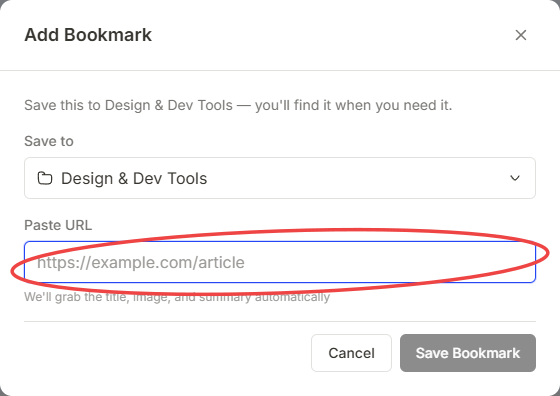
It appears in your library instantly, titled with the site's domain as a placeholder. A moment later the real title, description and thumbnail arrive on their own — you don't wait, and you don't refresh.
3. Organize it — lightly
Open any item to edit it. Two things are worth doing, and neither takes long:
Put it in a folder. Folders nest as deep as you want, so start rough and refine later.
Add a charm or two. Charms are flexible tags — "to-read", "client-work", "reference". Unlike folders, an item can carry as many as it needs.
Optional: hit the AI button for a summary and suggested tags. It only runs when you ask.
4. Set a reminder on something
This is the feature most people find last and wish they'd found first. On any saved item, schedule a reminder and Trezio emails you at that time — turning "I'll read this later" into something that actually resurfaces. The free plan covers three active reminders at once; Pro removes the cap.
Then: find it again
Search from the bar at the top, or from Quick Find on the Home screen. Trezio matches on your exact words first, then quietly adds semantically related results underneath — so a search for "pricing psychology" can surface something you saved as "how to charge more" even though the words don't match.
Where to go next
- Bringing bookmarks from another app? Import from another bookmark manager — free on every plan.
- Saving passwords or login screens? Start with What the Vault is before you save anything sensitive.
- Want the full feature tour? The Introduction covers everything, including ShareSpace and Drive sync.